
Troubleshooting activation errors that computer data transfer causes
Common Causes of the Errors
Depending on your migration method, the system sometimes unintentionally carries over your previous license activation status to a new computer. Consequently, this data transfer creates a mismatch, and you may see activation error messages on your screen.
Solutions
To resolve this issue, you must deactivate, clear, and initialize the transferred authentication data. Therefore, please try the following steps on the device where the error message is displayed.
Steps:
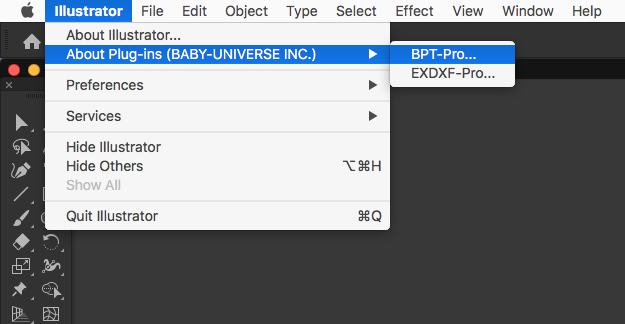
- Open Adobe Illustrator and show "About Plug-ins (BABY-UNIVERSE INC.)" in the Illustrator menu ( Help menu on Windows. )
- Please click "Deauthentication" button in the dialog.
(Note: No visible change will occur in the dialog at this moment.)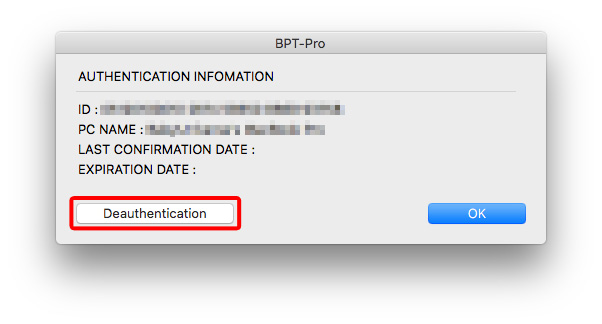
- Close Illustrator (A PC restart is not required, but please perform one if the application behaves strangely).
- Restart Illustrator.
- When the authentication dialog appears while using the plug-in, re-enter your authentication key to overwrite the existing one and complete the authentication process.
Please note that clicking "Deauthentication" updates the status to "deactivated" on the authentication server, but it does not clear the previously entered authentication key from the display.
The numbers (authentication key) will remain visible in the authentication dialog.
Therefore, when the authentication dialog appears upon using the plug-in tool, please enter the new authentication key directly into the box to overwrite it.