How to Change the UI Language to English (If It Is Displayed in Japanese)
If the software interface appears in Japanese after installing the English version, the issue can usually be resolved by reinstalling the plug-in correctly or updating the language settings file. Follow the steps below.
I. Verify the Installation Procedure (Windows)
When installing our plug-ins on Windows, please follow these steps:
- Confirm that you have downloaded the English version of the software.
https://baby-universe.net/support/download_subsc/ - Save the downloaded ZIP file directly to your Desktop.
- Right-click the ZIP file and select Extract All.
- Open the extracted folder and double-click Setup.exe to start the installation.
Do not install the plug-in manually by copying files.
For detailed installation instructions, please refer to:
https://baby-universe.net/2025/09/02/plug-in-install-windows-pc/
https://baby-universe.net/2021/06/14/how-to-install-uninstall-a-plug-in/.
II. Check the Language Setting Files
If the issue persists after reinstalling the software, please check the plug-in configuration files stored on your computer.
First, navigate to:
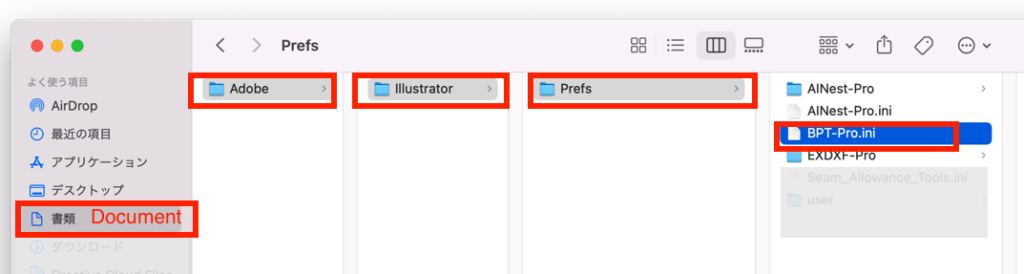
[Mac (Finder)] Documents > Adobe > Illustrator
[Windows (Explorer)] This PC > Documents > Adobe > Illustrator
Then locate the appropriate file for your product.
AI Trans-Pro
Open the AITrans-Pro folder and locate AI-Trans-Pro.ini
BPT-Pro / AI Nest-Pro
Open the Prefs folder and locate BPT-Pro.ini or AINest-Pro.ini
EXDXF-Pro
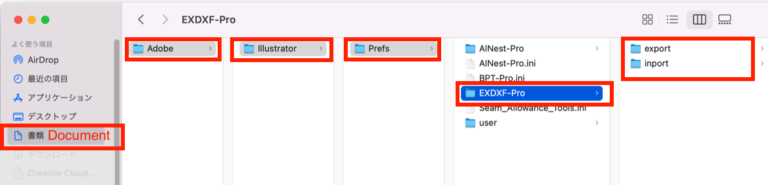
Navigate to Prefs > EXDXF-Pro and locate the following files:
In export folder: EXDXF-Pro.cnf, EXDXF-Pro.fct
In inport folder: EXDXF-Pro.cnf, EXDXF-Pro.fct
Update the Language Setting
- Open the applicable file in a text editor.
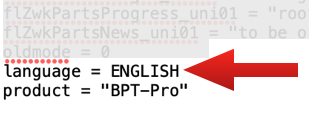
- Locate the language setting near the bottom of the file.
- If the setting is "language = JAPANESE", change it to "language = ENGLISH" and save the file.
- Close and restart Adobe Illustrator.
- Launch the plug-in again and check whether the interface now appears in English.